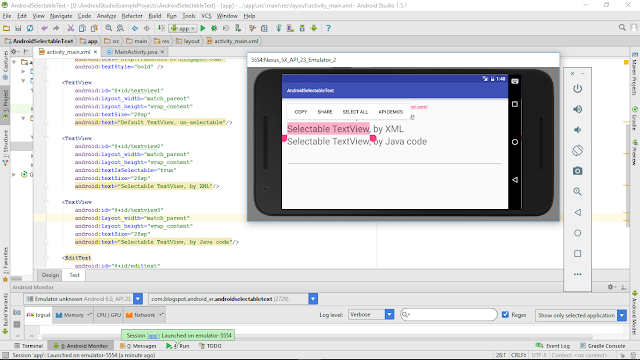
Make TextView selectable select and copy


Example to make TextView selectable, you can select and copy text from TextView and paste to other field, such as EditText.


Add android_textIsSelectable="true" in layout XML:
<?xml version="1.0" encoding="utf-8"?>
<LinearLayout

android_layout_width="match_parent"
android_layout_height="match_parent"
android_padding="16dp"
android_orientation="vertical"
tools_context="com.blogspot.android_er.androidselectabletext.MainActivity">

<TextView
android_layout_width="wrap_content"
android_layout_height="wrap_content"
android_layout_gravity="center_horizontal"
android_autoLink="web"
android_text="http://android-er.blogspot.com/"
android_textStyle="bold" />

<TextView
android_id="@+id/textview1"
android_layout_width="match_parent"
android_layout_height="wrap_content"
android_textSize="28sp"
android_text="Default TextView, un-selectable"/>

<TextView
android_id="@+id/textview2"
android_layout_width="match_parent"
android_layout_height="wrap_content"
android:textIsSelectable="true"
android_textSize="28sp"
android_text="Selectable TextView, by XML"/>

<TextView
android_id="@+id/textview3"
android_layout_width="match_parent"
android_layout_height="wrap_content"
android_textSize="28sp"
android_text="Selectable TextView, by Java code"/>

<EditText
android_id="@+id/edittext"
android_layout_width="match_parent"
android_layout_height="wrap_content"
android_textSize="28sp"/>
</LinearLayout>


or call setTextIsSelectable(true) method of the TextView object in Java code:
package com.blogspot.android_er.androidselectabletext;

import android.os.Bundle;
import android.support.v7.app.AppCompatActivity;
import android.widget.EditText;
import android.widget.TextView;

public class MainActivity extends AppCompatActivity {

TextView textView1, textView2, textView3;
EditText editText;

@Override
protected void onCreate(Bundle savedInstanceState) {
super.onCreate(savedInstanceState);
setContentView(R.layout.activity_main);

textView1 = (TextView)findViewById(R.id.textview1);
textView2 = (TextView)findViewById(R.id.textview2);
textView3 = (TextView)findViewById(R.id.textview3);
textView3.setTextIsSelectable(true);
editText = (EditText)findViewById(R.id.edittext);
}
}


Read More..

Make your emails stand out in Inbox

Originally posted on the Google Apps Developers Blog

As we announced last week, Inbox is a whole new take on, well, the inbox. It’s built by the Gmail team, but it’s not Gmail—it’s a new product designed to help users succeed in today’s world of email overload and multiple devices. At the same time, Inbox can also help you as a sender by offering new tools to make your emails more interactive!
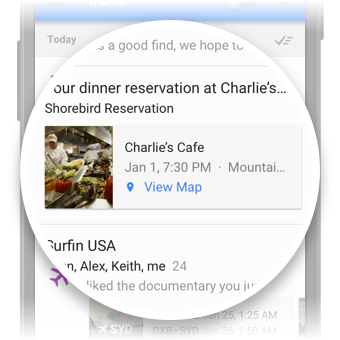
Specifically, you can now take advantage of a new feature called Highlights.

Exactly like it sounds, Highlights “highlight” or surface key information and actions from an email and display them as easy-to-see chips in the inbox. For example, if you’re an airline that sends flight confirmation emails, Highlights can surface the “Check-in for your flight” action and display live flight status information for recipients right in the user’s main list. The same can apply if you send customers hotel reservations, event details, event invitations, restaurant reservations, purchases, or other tickets. Highlights help ensure that your recipients see your messages and the important details at a glance.

To take advantage of Highlights, you can mark up your email messages to specify which details you want surfaced for your customers. This will make it possible for not only Inbox, but also Gmail, Google Now, Google Search, and Maps to interact more easily with your messages and give your recipients the best possible experience across Android, iOS and the web.

As an example, the following JSON-LD markup can be used by restaurants to send reservation confirmations to their users/customers:
<script type="application/ld+json">
{
"@context": "http://schema.org",
"@type": "FoodEstablishmentReservation",
"reservationNumber": "WTA1EK",
"reservationStatus": "http://schema.org/Confirmed",
. . . information about dining customer . . .
"reservationFor": {
"@type": "FoodEstablishment",
"name": "Charlie’s Cafe",
"address": {
"@type": "PostalAddress",
"streetAddress": "1600 Amphitheatre Parkway",
"addressLocality": "Mountain View",
"addressRegion": "CA",
"postalCode": "94043",
"addressCountry": "United States"
},
"telephone": "+1 650 253 0000"
},
"startTime": "2015-01-01T19:30:00-07:00",
"partySize": "2"
}
</script>

When your confirmation is received, users will see a convenient Highlight with the pertinents at the top of their Inbox, then can open the message to obtain the full details of their reservation as shown above.

Getting started is simple: read about email markup, check out more markup examples, then register at developers.google.com/gmail/markup and follow the instructions from there!


by Shalini Agarwal, Product Management, Inbox by Gmail
Read More..

How to make PC to Phone Calls For Free

Do you want to save money in this economy? Are you sick of paying expensive telephone bills? Are you looking for a way to decrease the price for your phone bills? Do you want a free phone service?-A lot of telephone companies charge overwhelmingly expensive prices for telephone service. Fortunately, there ways you can call people without having to pay. Thus, the primary purpose of this article is to show you how to make free phone calls from pc to phone.

Instructions

Things Youll Need:

  • Internet Connection
  1. Step 1

    Step 1- Download Mediaring talk

    Mediaring talk is a quasi-freeware program that basically allows you to make free phone calls from pc to phone. All you need is internet connection, and you will be able to dial pc to phone calls. To download Mediaring talk, go to mediaringtalk.com.


    Next, sign up and create and account. Once you have created an account, you will be able to download the software. Thereafter, install the program to your computer.

  2. Step 2

    Step 2- Install Mediaring talk

    The installation process is pretty straightforward. All you have to do is execute the setup and install it your computer

  3. Step 3

    Step 3- Using Mediaring talk

    After installing the program, open it and login. After logging in, you will be able to make unlimited pc to phone calls. In addition to be able to make free pc to phone calls, you can also make pc to phone international calls for free. However, you can only make international pc to phone calls to limited countries.

Read More..

Lip Sync How to make lip sync animation easy Animation Salvation

http://www.evokoo.com/blog/lip-sync-tutorial-chinese (Chinese Sub)

1. Foundation - act it out
2. Structure - Open/Close, Wide/Narrow (Fist under chin feel if chin is open)
3. Detail - add in eye, brows animation
4. Polish - personality


Animation tutorials

Read More..

Blog Archive

Powered by Blogger.